Selenium WebDriver Manager – in Python

With the augment of Selenium Webdriver 3, the onus to provide driver executables for the browser fell on the shoulders of browser makers. Also at this time, any browser which followed W3C compliance had to ensure it allowed automation of itself through Selenium. This information is now historical, as we are looking upto the newest version of Selenium on the block Selenium 4.0. But many projects and setups will still be using Selenium 3.0 and currently this topic is for those projects. Whether the new Selenium will bring any change with browser drivers or not that is still not known.

A big issue we all fell into is providing the driver executable for the browser based on the version on our system. Geckodriver which supports firefox has its own set of versions available compatible with every browser, and Chrome seems to be on a spree to release an upteem number of drivers for various versions of Chrome available – have a look – https://chromedriver.chromium.org/downloads, the point to note is that all these releases don’t have a very large span of time available between them.

Boni Garcia’s WebDriverManager comes to help in here to solve the issue of having available the correct driver version for the browser version you have on your system, or the one on which tests are executing. As per its definition available here – https://github.com/bonigarcia/webdrivermanager, it is a library which automate the management of drivers, required by Selenium WebDriver. The WebDriverManager does its magic by performing the following actions –

  1. Checks the version of the browser available on system[Chrome/Firefox/Edge/Opera..]
  2. If the current driver version matches, it proceeds else finds the driver version matching the browser version we have.
  3. Downloads the required driver if absent from  WebDriverManager cache (~/.cache/selenium by default), for python module it will be -user.home/.wdm folder.

In this article we will explore the WebDriverManager module in python, this one is created and maintained by Sergey Pirogov. Let us see the steps we will have to do to use this in our code-

1.Use the pip command to install webdriver-manager module for python

2. The next is its usage in a simple python program, let us see how we initialize the driver now-

Let us look at the different logs which got generated by WDM[WebDriverManager] as it instantiated Chrome browser using the correct driver version –

To know more about the usage of WebDriverManager for different browser types and various types of settings available with the module, visit this link – https://pypi.org/project/webdriver-manager/

Understanding TDD with help of an example- Fizz, Buzz, FizzBuzz

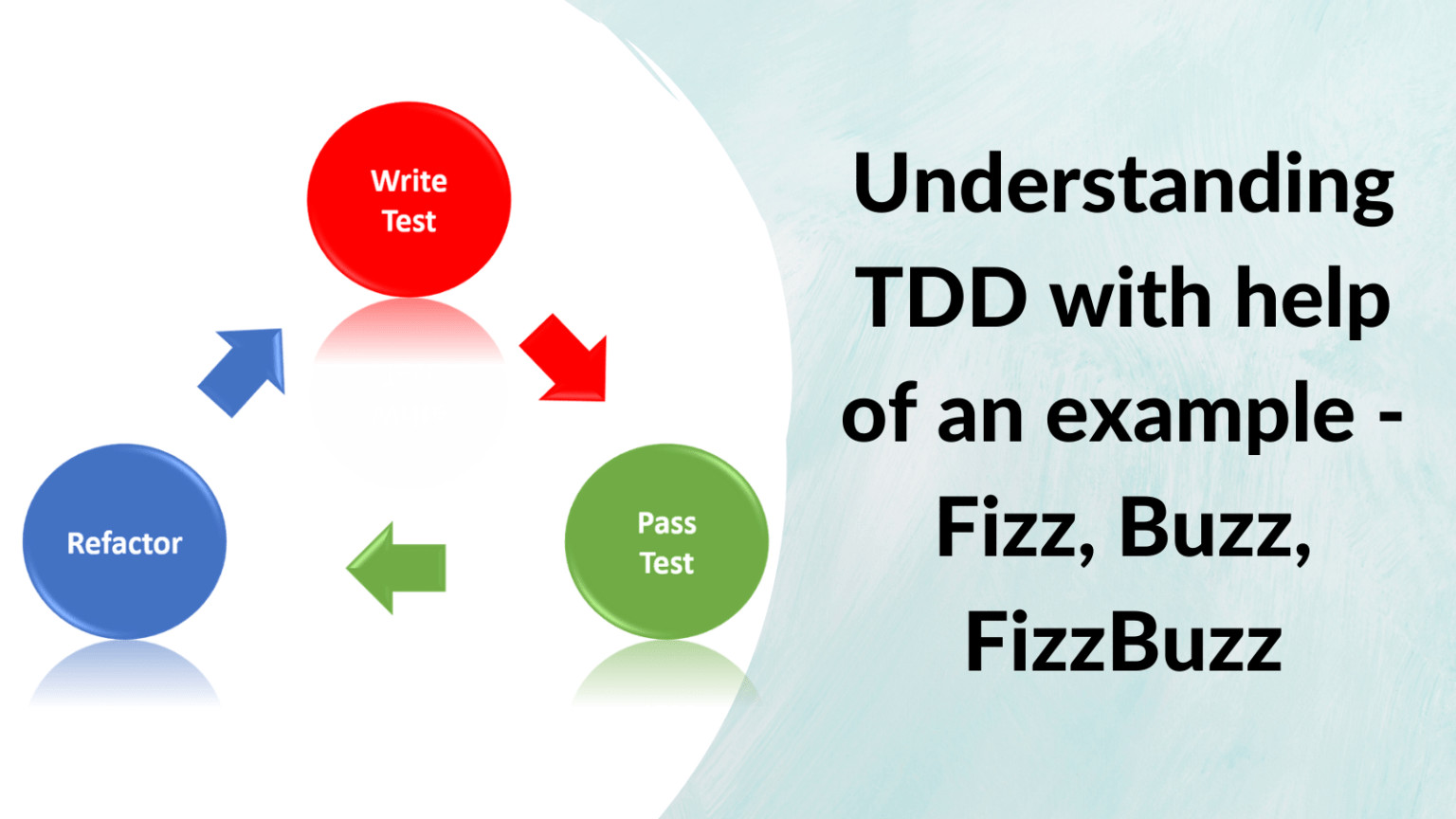
The first step to automation is programming, and the first step to write good code, is to write the unit test first. TDD has been long preached and practiced by various programmers, and in many organizations. But what exactly is TDD, is it just a diagram of Pass, Fail and Refactor, as so many of us know or is it more than that?

Learning TDD is hard, because programming itself is hard. And the shift of the perspective to write a unit test to make the code fail I believe one of the toughest shift in perspective a developer goes through. And this shift is crucial not with the developer mindset in your team, but in the management as well. Martin Fowler, in this insightful article describes about it, and I thought sharing of link will be better than trying to use my words, so here it is – https://martinfowler.com/bliki/TestPyramid.html

Let us jump into solving one of the Code Kata exercises FizzBuzz, by applying TDD. So the idea of FizzBuzz is, if I say 1, you say 1, if I say 2, you say 2, if I say 3, you say Fizz, if I say 4, you say 4, if I say 5, you say Buzz, if I say 6 you say Fizz, and if I say 10 you say Buzz and just in case I say 15 you say

FizzBuzz and this continues. So let us say we need to write an application, a simple console app, where if I pass an array of numbers, I get back an array of strings implementing FizzBuzz

So if input is –[1,2,3,5,7,9, 3,15,18,21,30]

The output is-[1,2,Fizz,Buzz,7,F10,1izz,Buzz,13,FizzBuzz,Fizz,Fizz,FizzBuzz]

The technical stack – C# as programming language, xUnit nuget package, FluentAssertions nuget package.

FizzBuzzTest [xUnitTest]

Steps

  1. We first create a test class, with an empty method, and a code class with an empty method.
  2. We now write enough test code to test requirement 1, which is if we pass 1, we should get “1”
  3. We need to understand this test will fail, and it then we will write the minimum possible code lines to make the test pass.

Let us see the test code-

As expected we see an error, as FizzBuzzClass doesn’t exists and nor does the method process.

The dev code, written to make the error go away-

The above are the minimal number of code lines which we can write to make the error go away. Please note, we might be tempted to go ahead and implement the rest of the logic, but we need to hold our horses in here, learn to, and first and foremost write the FAILING TEST.

The above will fail, as we have not handled the condition, that if 3 is passed, we need to return Fizz. So we now take care of it by adding the lines as follows-

And in the same manner we will add for Buzz remember in test first and Fail it.

And as we see this fail, we will make the change in the code class to take care of this

After a few iterations and refactoring, our code will look like the following –

Test first

We now move onto the next part, where we would want to pass for an array of input numbers, to get the expected array of strings, so we right the test again, for it to fail

Failure message –

We fix it by adding enough code lines in the code class to allow the method to pass.

And now if we execute the tests, we will get what we wanted, Green, and we can continue the process of refactoring by adding more abstraction, removing duplicate code as we keep solving more and more requirements, or even write better code than shared in the above example.

The final solution and files are available on github link –https://github.com/AgileTestingAlliance/TDDFizzBuzz.git

Advantages-

There are significant advantages one starts noticing and is long preached and measured with TDD practice –

  1. Better code coverage
  2. Detailed Documentation
  3. Fewer bugs in production, its measured almost 40-80% of bug reduction is experienced
  4. Better communication across team, and to know more go ahead and read more on it.

Parallel Test Execution Using Python, Docker Compose and Selenium Grid

Python as a programming language has picked up pace, and is almost becoming a de-facto choice for engineers across many domains, and testing is indeed one of them. For a long time Selenium has supported Python implementations, and over recent years there has been a surge in demand for the skill set. The reason is primarily allocated to the immense set of rich python libraries and its vast usage across many organizations in various fields. More on this is discussed here – https://cpsat.agiletestingalliance.org/2021/02/10/why-use-python-for-selenium/

If you are a user of Selenium using a programming language like Java or C# you may find the syntax and various other tasks performed in these compiler languages differently than in Python which is interpreted. The syntax of Python is much simpler, and sometimes due to oversimplification and vast number of modules available for the same task, there could be complexity which could be faced by the novice and experienced engineers of test.

Recently at the #SeleniumSummit21, conducted by Agile Testing Alliance, https://seleniumsummit21.agiletestingalliance.org/, Aditya Garg took a lab session on setting Selenium Grid using Docker, and then went on to use Docker compose. So in this article I have explained how we can create few test scripts using pytest, setup the grid environment using docker compose and then execute the tests in parallel. This all is done using Python as the language. If you wish to learn how to do the same using Java, please visit this amazing lab session by Aditya – https://www.youtube.com/watch?v=WlFNfovWhvc&feature=youtu.be

TOOLS AND TECHNOLOGY

The details of the tools and technology used while creating this article are listed here –

Python version -3.8 you can use the latest one – https://www.python.org/downloads/

Docker Version – 20.10.2

The VnC viewer I have used is Tight VnC- https://www.tightvnc.com/

And the docker for this article is installed on the windows 10, home edition, for more help you can refer to the link – https://docs.docker.com/docker-for-windows/install-windows-home/

And I have installed the pytest-xdist module using pip. The command for it would be –

pip install pytest-xdist

This would allow us parallel execution. More details on it are available here – https://pypi.org/project/pytest-xdist/

Creation of PyTest for Chrome

import pytest from selenium import webdriver def test_login_chrome(): driver=webdriver.Remote( command_executor=”http://localhost:4444/wd/hub”, desired_capabilities={ “browserName”: “chrome”, }) driver.get(“http://www.5elementslearning.dev/demosite/”) driver.find_element_by_link_text(“My Account”).click() driver.find_element_by_name(“email_address”).clear() driver.find_element_by_name(“email_address”).send_keys(“abc@demo.com”) driver.find_element_by_name(“password”).clear() driver.find_element_by_name(“password”).send_keys(“demo@123”) driver.find_element_by_id(“tdb5”).click() driver.find_element_by_link_text(“Log Off”).click() driver.find_element_by_link_text(“Continue”).click() driver.quit()

Creation of PyTest for Firefox

import pytest from selenium import webdriver def test_login_firefox(): driver= webdriver.Remote( command_executor=”http://localhost:4444/wd/hub”, desired_capabilities={ “browserName”: “firefox”, }) driver.get(“http://www.5elementslearning.dev/demosite/”) driver.find_element_by_link_text(“My Account”).click() driver.find_element_by_name(“email_address”).clear() driver.find_element_by_name(“email_address”).send_keys(“abc@demo.com”) driver.find_element_by_name(“password”).clear() driver.find_element_by_name(“password”).send_keys(“demo@123”) driver.find_element_by_id(“tdb5”).click() driver.find_element_by_link_text(“Log Off”).click() driver.find_element_by_link_text(“Continue”).click() driver.quit()

In the above scenario, we are performing a login logout action on a website available at the url – http://www.5elementslearning.dev/demosite. Now experienced automation experts may note that this is not a test as it doesn’t have any assertions, but I take the liberty to exclude this step, but please feel free to add and modify this script to make it a test case.

SETTING GRID USING DOCKER COMPOSE

A simple google search will take you to many landing pages where docker and docker compose are discussed in great detail for setting of the selenium grid. I have found this link the most helpful – https://github.com/SeleniumHQ/docker-selenium/wiki/Getting-Started-with-Docker-Compose

For the sake of simplification the chrome, and firefox scripts and the docker-compose.yml file are kept in the same folder.

The details of the docker-compose.yml is as follows – version: ‘2’ services: firefox: image: selenium/node-firefox-debug volumes: – /dev/shm:/dev/shm ports: – “6441:5900” depends_on: – hub environment: HUB_HOST: hub chrome: image: selenium/node-chrome-debug volumes: – /dev/shm:/dev/shm ports: – “6442:5900” depends_on: – hub environment: HUB_HOST: hub hub: image: selenium/hub ports: – “4444:4444”

The default port on which hub will be listening is 4444, and to connect to the nodes using VnC viewer we will be using the port address as 6441, and 6442 respectively. The password is ‘secret’, and this is no longer a secret. Please note that I have used the debug versions of the chrome and firefox node as we would like to see the execution happening on the system. If you are new to the concept of containerization, maybe having a glimpse of this youtube video will help you – https://youtu.be/7hNHsYtyaU0

So as we are now all set, the following would be the order for execution

a. Using the docker-compose and the .yml file, we “UP” the grid environment
docker-compose -f docker-compose.yml up -d

b. The next step is to check if the hub is running, for this you can open the browser with the url –
http://localhost:4444/grid/console

This should show you the following screen

c. The next step is to use the VnC viewer to connect to the nodes which would now be listening on the
port- 6441, and 6442 respectively

d. Once we have reached this step, we are good for the final show. So we say abracadabra and pass on the
command
pytest -s -v -n=2

And we should be able to see the execution of the scripts in parallel.

e. After we are done, we can use docker-compose command to shut down the environment.
docker-compose -f docker-compose.yml down

CODE ON GITHUB

The above code files are available on the github url – https://github.com/pallavigitwork/pytestwithdockercompose

Hope you find this as a good starting point to your journey in learning parallel execution for scripts using docker, docker compose, selenium grid for python as a programming language. To know more about 5 elements learning, visit the website – https://5elementslearning.dev/, and to know more about Agile Testing Alliance upcoming events, do visit us at – https://ataevents.org/

For upcoming Selenium and Python Boot Camp Programs please visit the given URL: 
https://cpsat.agiletestingalliance.org/#Events

If data is the new oil, Python is the new driller

If data is the new oil, python is the new driller


As per the current trends, Python as a programming language has gained immense popularity in comparison to other languages around it. Refer to the information available in article – https://cpsat.agiletestingalliance.org/2021/02/10/why-use-python-for-selenium/

One of the main reasons for the soar in popularity is that “data” has become the next “oil” and the field of data science, AI, and machine learning has gained immense popularity. This has led to another area in testing, about learning to test AI based applications, and what could be the challenges faced when you do so, an insightful article on it appeared in forbes,
https://www.forbes.com/sites/cognitiveworld/2020/01/03/how-do-you-test-ai-systems/?sh=2ea01671afd5

CPSAT WITH PYTHON

The current technical stack available in the market for the testing whether it is the gui, reports, containerization, ci/cd pipeline, test data. Python provides a rich library supporting all the activities besides empowering you with a lot more you can achieve with this humble language.

Its not new, it has been around since the 1980’s even before than Java programming language. Many organizations big and small are already using python, and more so are getting added to the current list.

As far as I am concerned, I have been an ardent fan of this language and its humongous power. I have been coaching people on python for test automation, bdd, mobile testing, and also have written a book on the same, which is currently in top 100 books on software testing on amazon. The program CPSAT- with python is one ours  most ambitious program, designed around the current trends in the world of testing and tools available to ease the process.

Join us as we start the journey on the 13th Feb 2021, and be ready for the most intense, hands on, comprehensive and cost effective program available in the current market today. I hope to see you there in this journey of learning.

To enroll, please visit – https://www.townscript.com/e/cpsatonlinefeb2021

For all upcoming events like conferences, meetups, CPSAT Python and Java programs, WebService Testing programs, DevOps programs, please click on the following button

ATAEvents.org

Why use Python for Selenium

Selenium is a popular test automation tool which supports multiple programming languages, like Java, Python, Perl, Python, C#, Ruby set of languages.

Selenium with Java is one of the most popular implementations of it, but selenium with python is also gaining significant momentum, because of the steep rise in the popularity of python as a language, which as shown in diagram below occupies a significant market now.

Why use Python for Selenium Blog Img

Source-https://in.pinterest.com/pin/671317888175705429/

As testers who are now required to be empowered with coding skills, it’s a smart decision to pick a scripting language which has huge support for other test related activities. Python, has a very rich set of modules available in the Python package manager – http://pypi.org, and with the help of it there is no need to reinvent the wheel.

Python language index like syntax make it easier to be understood by programmer and non-programmer alike. You can compare the simplicity of a code in python yourself, by just comparing a helloWorld program written in java vs one in python.

Hello World in Java
class HelloWorld{
public static void main(String[] args){
System.out.println(“hello world”);
}
}

Hello World in Python
print(“hello world”)

https://ataevents.online/CPSAT-Python-ProgramWe can see the level of complexity of writing code is greatly reduced with Python. With the new age practices coming into picture, there is a tendency now to use programming languages which are more natural and similar to English like language. Complexities like case sensitive, usage of brackets, semi colons are now bound to diminish and someday disappear in oblivion

Can you Learn Python from Scratch and also Selenium

Absolutely yes. Do not miss to register for the upcoming CPSAT Python Extended program which is helping manual testers get into automation (Selenium) using python. Python basics will be covered over the first weekend.

Upcoming CPSAT Python Extended Program

To learn more about using Python with the most popular browser automating tool Selenium, join our #handsON Instructor Led Training – CP-SAT Program

The above article is written by the same author and appeared first here – https://5elementslearning.dev/moredetail/selenium-with-python

Data Driven Selenium Automation Testing – Part 2 (CSV Data with Junit 5)

In the previous article “Data Driven Selenium Automation Testing – Part 1 (with Junit 5)” , we have learnt how we can perform data driven testing with Junit5. The data driven feature was provided by data provider but data was maintained in the Selenium Java Code itself. In this article, we would be extending previous article’s problem statement by trying to decouple data from the code by maintaining data in CSV file format.

Data Driven Testing is the need of the hour, and the most convenient way to get data is through data files. Data Files may be in various formats but most commonly used formats are:

  • CSV format (*.csv files)
  • MS Excel Workbook (*.xls or *.xlsx files)
  • XML Format (*.xml files)
  • JSON format(*.json files)

The addendum to the Problem statement is:

“Given with a data set comprising of URLs to visit and verify the corresponding Page Titles using Data Driven features of Junit 5”

pom.xml

In order to read csv data file, we’d be adding a maven dependency of opencsv in pom.xml

We have updated the static data provider method dp(). It takes help of a static method

public static String[ ][ ] getCSVData(String fileName, char sep)

from a utility class CSVDataReader as shown below:

The csv data file (urls_titles_data.csv) contains sample data as follows

The getCSVData() method takes CSV Data file path and a separator as arguments. It reads line by line till the end of file and stores each line into arraylist and thus a two dimensional String array is populated, which is returned back to the caller method.

Rest of the Implementation is same as done in the previous article. And we can run this as a Junit 5 test and it is something like below

And the JUnit summary panel displays the test result summary for passed / failed tests and their execution time as well

Conclusion

We could decouple Data in CSV File format from the Java Code and making a true Data Driven approach. The code is available at following

In the next article, we would try to leverage Data in XL format.

Solutions to CPSAT Python Mock Exams Mock Exam 2 – Question2

In the current blog series, Let us try to solve the problems of Mock Exam of CPSAT Python that can be found at following links

In the present blog we would be attempting Question 2 of Mock Exam 2.

Problem statement

Qn2. Using PyTest / WebDriver script,

  • open http://www.imdb.com/ in Google Chrome
  • Search for movie “Gangs of New York” and
  • open the movie details page and
  • perform the following :
    1. Verify that the movie’s run time is less than 180 min.
    2. Verify that the movie’s genre contains “Crime”
    3. Verify that the MPAA rating of the movie is “R”
    4. Go to the User Reviews section of the movie and display the name of the Reviewer on the PyCharm IDE console

Description

The Steps for automating the test for the given problem statement are as follows

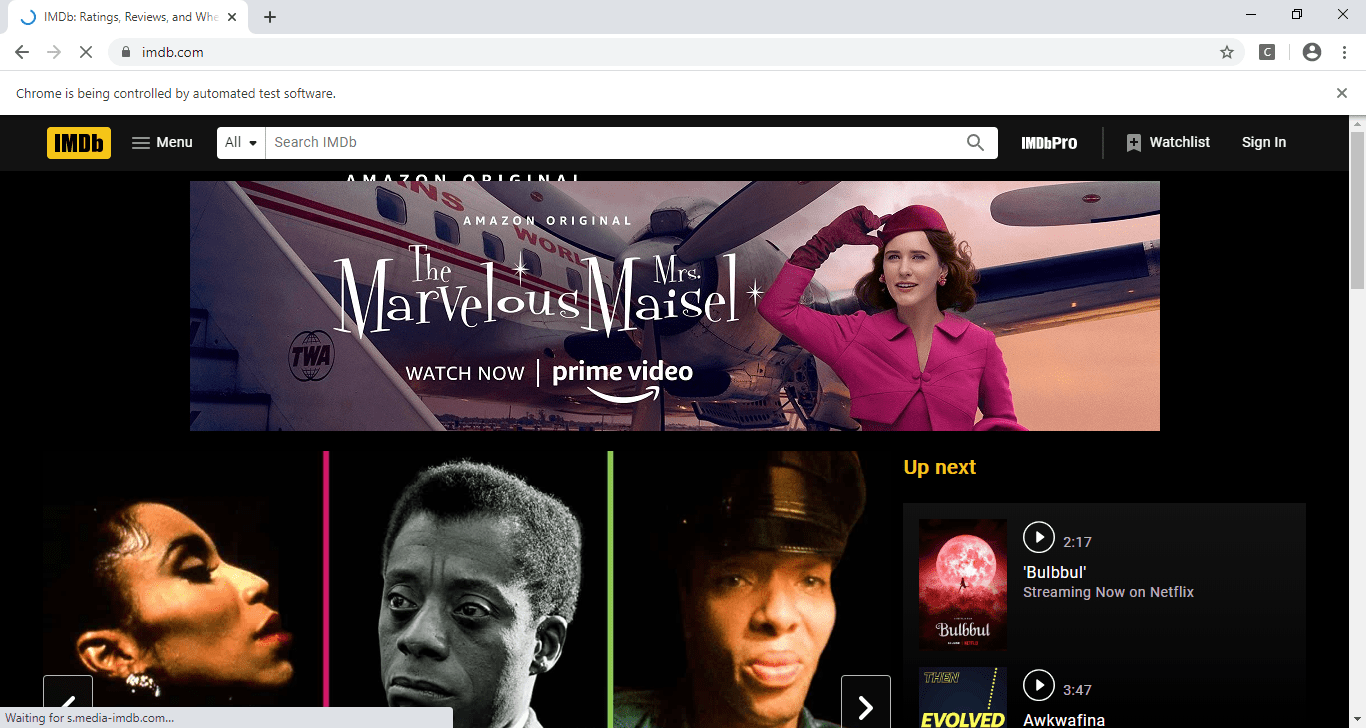
Step 1 : Load the URL ‘http://www.imdb.com/’ in Chrome Browser

Step 2 : Search for ‘Gangs of New York’

Step 3 : Click on movie Link on search result page

Step 4 : Locate Quick Link Bar containing the below details required to validate

R | 2h 47min | Crime, Drama | 20 December 2002 (USA)

Step 5 : Validate Runtime to be less than 180 mins

Step 6 : Validate Genre to be Crime

Step 7 : Validate MPAA Rating to be R

Step 8 : Click on User Reviews and print reviewer’s name

We will automate the test by using

  • Python
  • Selenium package
  • PyTest library which is used as a unit testing framework along with python
  • PyCharm IDE (Integrated Development Environment)

We create a python file whose name starts with “test_” and having extension of .py like test_mock2_Q2.py.

Import Section

In this section we import the modules that we are going to use subsequently in our test script eg. time, webdriver etc

Setup method

Inside setup method usually we carry out all the preparatory activities like setting driver properties, instantiating Chrome/Firefox Browser instance and maximise window and optionally setting the waits. It could be considered as an ordinary python method

Teardown method

Towards the end, we should release our resources like closing the driver instance is performed through another python method teardown() method.

Pytest test methods

Now we would be writing test methods and these pytest test should follow the specific nomenclature and name of each method must start with test_* .

test_validate_movie_details()  is the test method written for this purpose and code walkthrough is as follows

  • Load the URL ‘http://www.imdb.com/’ in Chrome Browser (Line26)
  • Search for ‘Gangs of New York’ in the Search Box (Line28-Line32)
  • Click on movie Link on search result page(Line34)
  • Locate Quick Link Bar containing the below details required to validate(Line38-Line50)
    • R | 2h 47min | Crime, Drama | 20 December 2002 (USA) Splitting this Text String into a python list containing different details and each field is processed further for next set of validations
  • Validate Runtime to be less than 180 mins : Runtime field text obtained from step 4 is further splitted in hour part and min part and thus we can compute runtime in minutes(Line68) and therefore can compare if it is less than 180 mins or not.
  • Validate Genre to be Crime
  • Validate MPAA Rating to be R
  • Click on User Reviews and print reviewer’s name

Run PyTest

Now to run our tests, we need to configure pytest as our default test runner (for details please refer https://www.jetbrains.com/help/pycharm/pytest.html ).

We can run pytest in either of the two ways described below.

  • Open a terminal in pycharm and run at command prompt (>pytest test_Question_02.py )

Or

  • Right click on test_Question_02.py file on left panel, and Run ‘PyTest ……….’ As shown below

Conclusion

We have gone through step-by-step process to automate the Question2 of the Mock Exam 1 for CPSAT-Python through selenium automation for Chrome Browser using  pytest in python.

The complete python file may be referred at below link

Mock2/test_Question_02.py

Curabitur arcu erat accumsan id imperdiet

Curabitur arcu erat, accumsan id imperdiet et, porttitor at sem. Sed porttitor lectus nibh. Curabitur arcu erat, accumsan id imperdiet et, porttitor at sem. Praesent sapien massa, convallis a pellentesque nec, egestas non nisi. Vivamus magna justo, lacinia eget consectetur sed, convallis at tellus.

Quisque velit nisi, pretium ut lacinia in, elementum id enim. Vestibulum ante ipsum primis in faucibus orci luctus et ultrices posuere cubilia Curae; Donec velit neque, auctor sit amet aliquam vel, ullamcorper sit amet ligula. Vestibulum ante ipsum primis in faucibus orci luctus et ultrices posuere cubilia Curae; Donec velit neque, auctor sit amet aliquam vel, ullamcorper sit amet ligula. Curabitur non nulla sit amet nisl tempus convallis quis ac lectus. Cras ultricies ligula sed magna dictum porta.

Donec rutrum congue leo eget malesuada. Donec sollicitudin molestie malesuada. Curabitur arcu erat, accumsan id imperdiet et, porttitor at sem. Curabitur aliquet quam id dui posuere blandit. Curabitur aliquet quam id dui posuere blandit.

Nulla porttitor accumsan tincidunt. Mauris blandit aliquet elit, eget tincidunt nibh pulvinar a. Pellentesque in ipsum id orci porta dapibus. Proin eget tortor risus. Mauris blandit aliquet elit, eget tincidunt nibh pulvinar a.

Lorem ipsum dolor sit amet, consectetur adipiscing elit. Vestibulum ac diam sit amet quam vehicula elementum sed sit amet dui. Lorem ipsum dolor sit amet, consectetur adipiscing elit. Mauris blandit aliquet elit, eget tincidunt nibh pulvinar a. Proin eget tortor risus.